Creating a Script Task
Configure a PL/SQL Script Task
This section covers how to create and configure a PL/SQL task.
In Flows for APEX, you can use custom PL/SQL to define a task for the following BPMN task types:
| Task | Description / Usage | |
|---|---|---|
| Service Task | Calls external service (e.g., REST, SOAP) automatically. | |
| Script Task | Executes server-side script without human interaction. | |
| Send Task | Sends a message to another participant or process. | |
| Business Rule Task | Evaluates rules via decision engine or DMN table. |
Functionality and behavior is identical when using a PL/SQL script in any of these BPMN task types, but in this documentation we will assume it is a standard Script Task.
1. Configuring a Script Task in the BPMN Modeler
You can add a ScriptTask into your BPMN diagram by adding a task ( the symbol). Then, using the spanner tool , convert the task to a Script Task ( ), Service Task ( ), Send Task ( ), or Business Rule Task ( ), as appropriate.
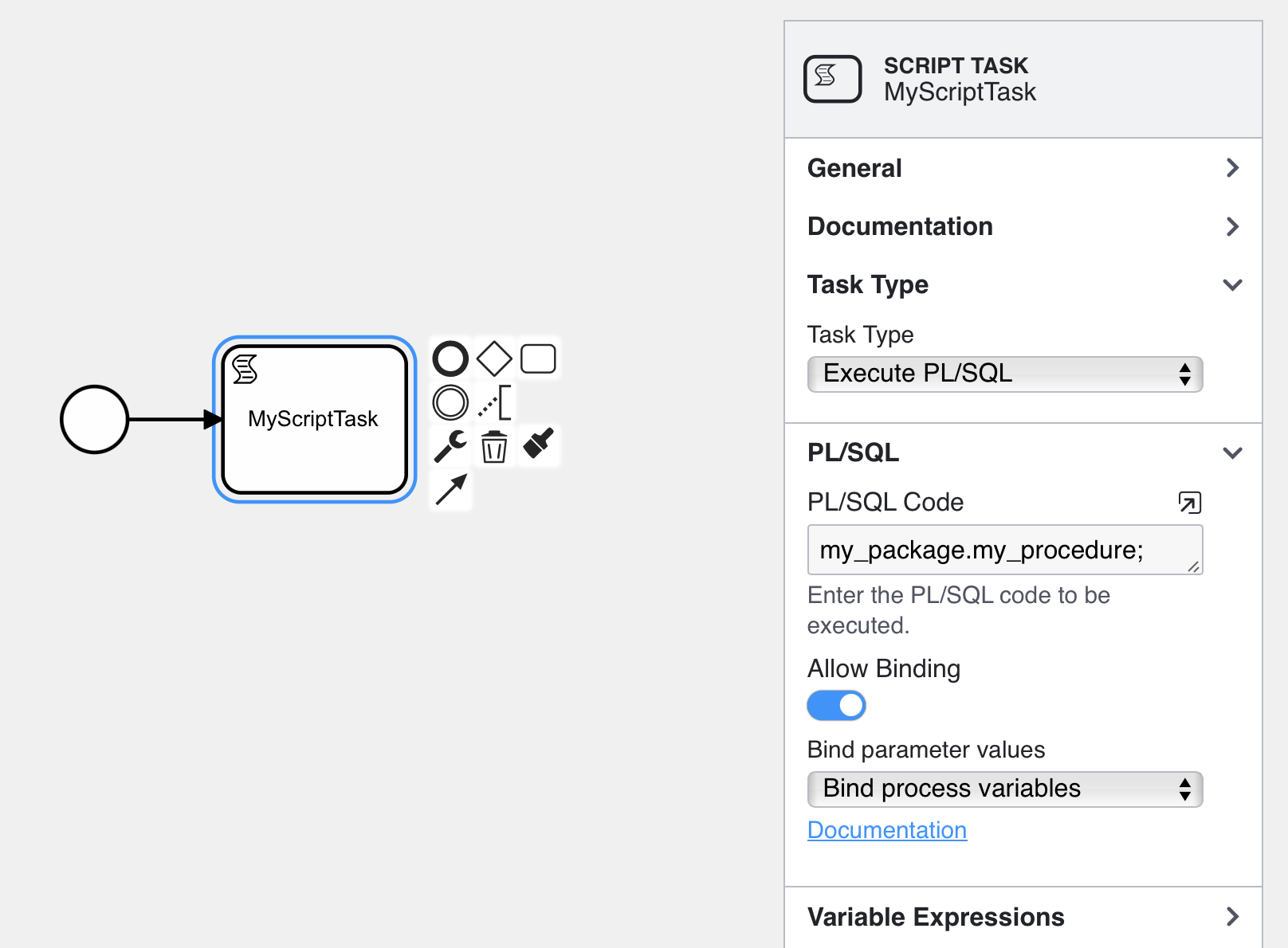
In the properties panel, select the Execute PL/SQL task type, and open the ‘PL/SQL’ section.
- PL/SQL Code. Enter your PL/SQL code here.
Good practice would be to create your code in a PL/SQL package that is created in the APEX workspace schema, and just call the procedure or function from your script task. This way, your code can be easily changed without having to edit your BPMN model. It also allows any files containing the package or procedure to be kept in source code control, e.g., GitHub. - Binding Items. A script task can refer to process variables using bind syntax if ‘Allow Binding’ is enabled. You should choose to bind process variables. (You are also allowed to choose to bind APEX Page Items into a script, but this is now not recommended. If a script is executed separately from the APEX page that triggered it, any page items will not be available. This would be a problem, for example, if a script is run when a process step failed and is restarted, or if a script task is run as part of a step or series of steps executed by a timer event.
- For example, if a user task step is followed by a script task step, and you want to reference some of the APEX page items from your user task in your script task, you should save the page items into process variables in the user task before issuing the
flow_complete_stepcall. Then, as part of your script task, you can reference the process variables. These will then always be available to the script task - even if it is run from a background process or from a task restart.)
- For example, if a user task step is followed by a script task step, and you want to reference some of the APEX page items from your user task in your script task, you should save the page items into process variables in the user task before issuing the
Accessing Process Variables in your PL/SQL Script
For a reference to the runtime context package used inside PL/SQL tasks, see flow_globals Runtime Context API.
Process Variables and Pseudo Variables (state)
Process variables and pseudo variables are available inside your PL/SQL procedure as follows:
-
Flows for APEX Process Variables. Process variables can be retrieved and used inside your procedure, using the PL/SQL setters and getters contained in the process variable api package,
flow_process_varsSee API doc. -
Flows for APEX Pseudo Variables containing Process State. These are the items that are available as flow_globals. Some of these are only relevant in more advanced use, but I’ve included a full list for completeness — don’t worry if you don’t understand what they all represent!
| item | description | bind syntax | function call | type definition |
|---|---|---|---|---|
| process_id | the process instance id. Uniquely identifies a running process. | :F4A$process_id | flow_globals.process_id | flow_processes.prcs_id%type |
| subflow_id | the path within the running process instance. | :F4A$subflow_id | flow_globals.subflow_id | flow_subflows.sbfl_id%type |
| step_key | essentially the step id within the running process instance. | :F4A$step_key | flow_globals.step_key | flow_subflows.sbfl_step_key%type |
| scope | variable scope - used to differentiate between instances of a variable with the same name in the same process instance (which only occurs when Call Activities or Iterated Tasks and sub processes are being used. Otherwise scope is ‘0’ | :F4A$scope | flow_globals.step_key | flow_subflows.sbfl_scope%type |
| rest_call | Is this process step being called from the REST interface? | :F4A$rest_call | flow_globals.rest_call | boolean |
| loop_counter | only relevant for iterated tasks and sub-processes, to keep track of which copy of the task / sub-process is being run. | :F4A$loop_counter | flow_globals.loop_counter | flow_subflows.sbfl_loop_counter%type |
Using the PL/SQL Set and Get routines
You can set process variables in your PL/SQL Script using the set and get routines in like this…
declare
    my_content_string varchar2(20) := 'Some Text';
begin
    flow_process_vars.set_var ( pi_prcs_id   => flow_globals.process_id,
                                pi_var_name  => 'My_Process_Variable',
                                pi_scope     => flow_globals.scope,
                                pi_vc2_value => my_content_string);
end;
In earlier versions of Flows for APEX you could have used the syntax flow_plsql_runner_pkg.g_current_prcs_id, which is now deprecated.
APEX Page Item values are available to your procedure, but it’s not recommended. that you reference them in a workflow script as they might not still be available when a script is run, for example, if the step fails and is restarted. By default, they are not available. Furthermore, using Page Items to pass values from one process step to another is not recommended, and from V22.1 is now deprecated. Instead, you should use Process Variables to pass values from one process step to another.
Note that, depending upon your process, a scriptTask might not be executed from the context of an APEX page, and so APEX Page Items might not be available. This would occur if a script is run (or re-run) later, after another user has performed part of the process, or if a task operates as a result of, for example, a timer firing. Use of Page Items to pass values between steps also makes your process steps non-restartable in the event of an error. For all these reasons, you should use Flows for APEX process variables as a variable system that is persistent for the life of your business process, rather than APEX page variables which only persist during a user session.
Bind Syntax
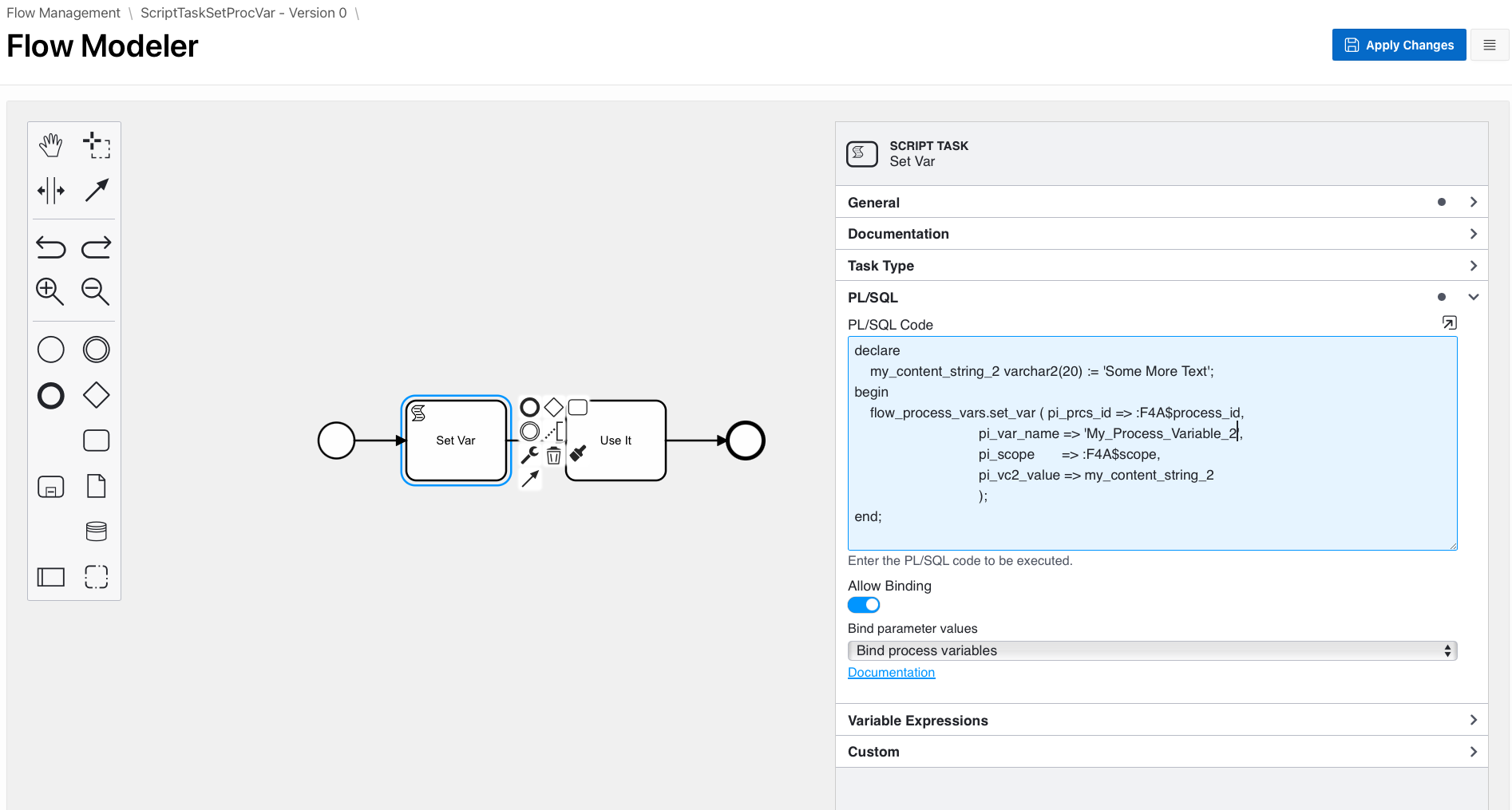
Alternatively, you can bind the key process state variables into your code. In this case, we prefix the variable name with :F4A$ when we reference it. Then you turn on binding with the ‘Allow Binding’ switch, and then select Bind Process Variableson the selector.
Any other process variables that have been defined in the process instance can also be bound using this syntax. For example, you could reference a process variable empno into my script task as :F4A$empno.
Our code to set a process variable, now references the process_id and scope using bind syntax like this…
declare
    my_content_string_2  varchar2(20) := 'Some More Text';
begin
    flow_process_vars.set_var ( pi_prcs_id   => :F4A$process_id,
                                pi_var_name  => 'My_Process_Variable_2',
                                pi_scope     => :F4A$scope,
                                pi_vc2_value => my_content_string_2
                              );
end;
When using this in a process diagram, turn on ‘Allow Binding’ and select ‘Bind Process Variables’ in the Flow Modeler like this…
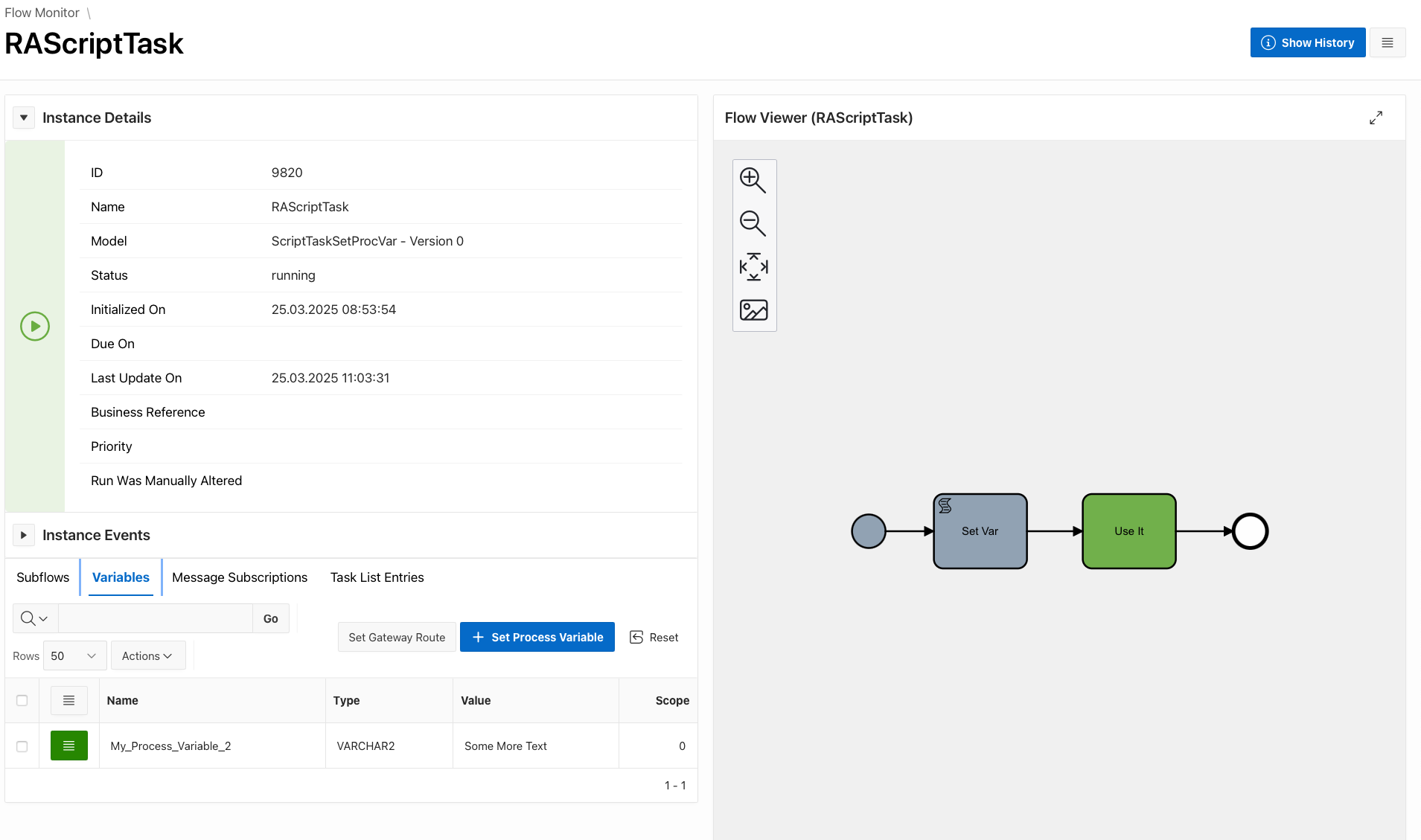
And here is the result after an instance of the process runs…. Our process variable My_Process_Variable_2 was correctly set to Some More Text.
Task Parameters
From Flows for APEX v26.1 onwards, PL/SQL Script Tasks can also use Task Parameters as a step-level contract for inputs and outputs.
For the full overview, see Task Parameters.
Task parameters are different from process variables:
- process variables hold workflow state that can persist across many steps
- task parameters are local to one step execution and define what the script receives and returns
Getting Input Parameters using flow_globals
If input parameters are defined on the Script Task, your PL/SQL code can read them using flow_globals.input_parameter.
declare
  l_case_id   varchar2(100);
  l_priority  varchar2(30);
begin
  l_case_id := flow_globals.input_parameter(pi_parameter_name => 'case_id');
  l_priority := nvl(flow_globals.input_parameter(pi_parameter_name => 'priority'), 'standard');

  -- task logic here
  null;
end;
Input parameters are populated after any before-task variable expressions have run, so those expressions can prepare process variable values before the task input parameters are resolved.
Setting Output Parameters
Your PL/SQL Script Task can return step output values using flow_globals.set_output_parameter.
begin
  flow_globals.set_output_parameter('status', 'APPROVED');
  flow_globals.set_output_parameter('result', 'Validation completed successfully.');
end;
Output parameters are created before any after-task variable expressions run. This allows the after-task expressions to copy or transform the task outputs into process variables for later steps in the workflow.
Throwing an Error from your PL/SQL Script
Your PL/SQL script can raise two types of error conditions, to alter workflow execution.
- Throw a BPMN Error Event. In conjunction with a BPMN Error Catching Boundary Event on the BPMN Script Task, your code can throw a BPMN Error.
- Stop BPMN Engine Error, to stop processing in the event of a technical error condition.
Both of these are initiated from your PL/SQL script by raising specific, pre-named PL/SQL exceptions.
1. Throwing a BPMN Error Event
To throw an error in your user code, all you need to do in the PL/SQL is to raise a pre-defined PL/SQL exception flow_globals.throw_bpmn_error_event. This gets caught on the outside of your script, and causes the error to be treated appropriately by the Flows for APEX engine.
For example, as part of a sales application, the customer supplies a payment method. You then have a PL/SQL script task which processes the payment with your bank, via a REST call. If the payment is completed, all well and good, and the task completes and the workflow moves forward. But if the card is declined, you want to throw a BPMN process error, which would take. the user back to enter another payment method.
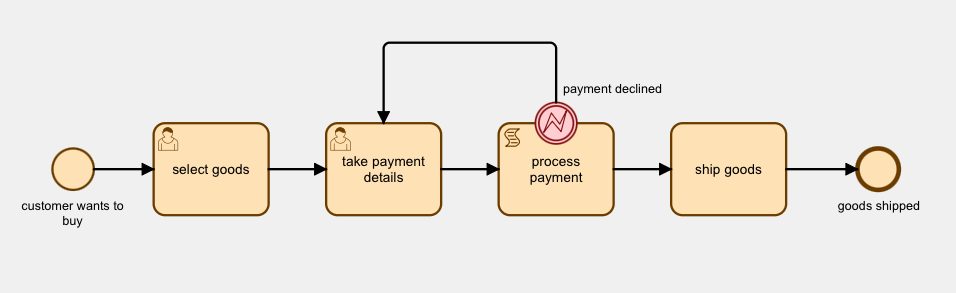
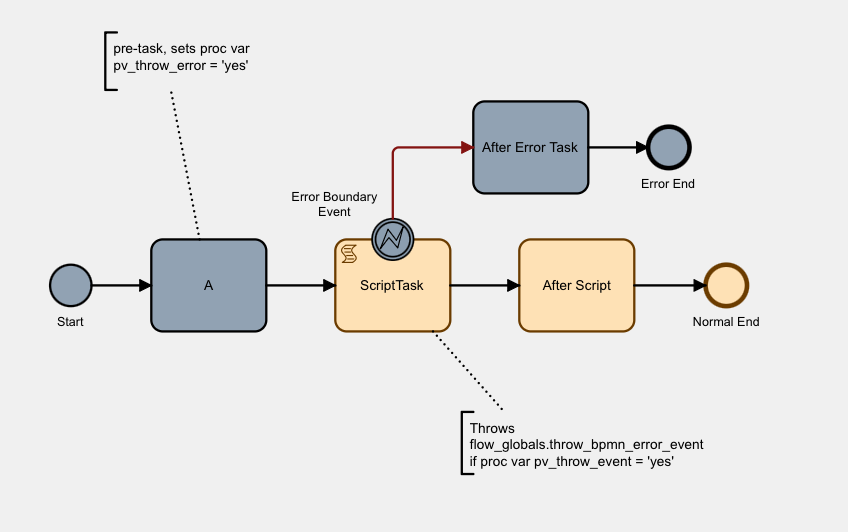
Here’s a simple test case to show you how this is done.
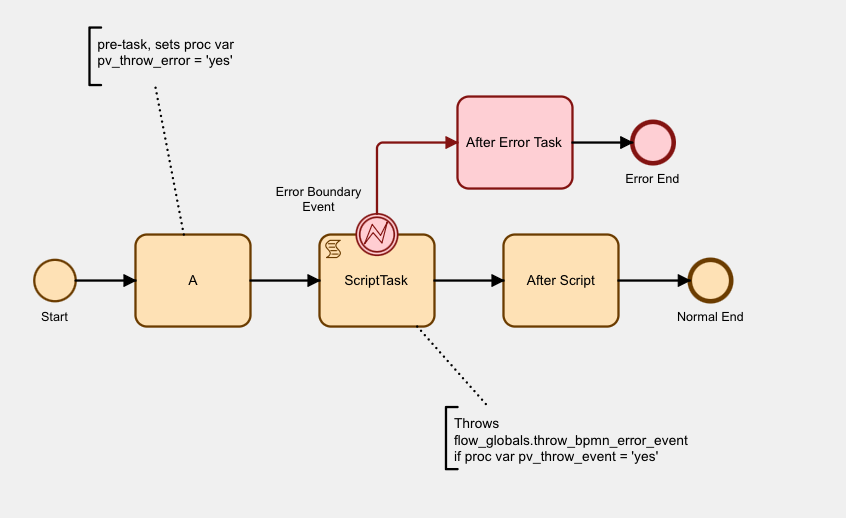
Task A uses a Flows for APEX variable expression to set a process variable pv_throw_error to yes.
Our ScriptTask is defined as an Execute PL/SQL type script task.
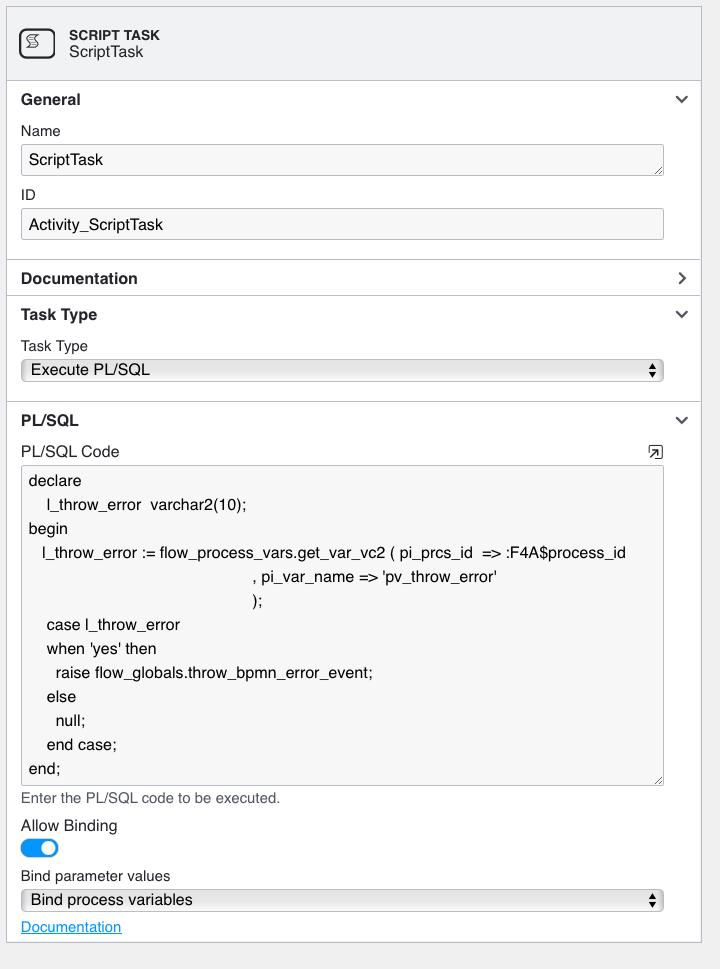
Our basic code here doesn’t contain much business processing - just enough code to show you how the exception gets raised. First it gets the content of the process variable pv_throw_error for the current process instance, using flow_proces_vars.get_var_vc2 . Then if the value is yes we raise the pre-named exception, flow_globals.throw_bpmn_error_event. This causes the script to stop, and the Flows for APEX workflow engine handles this by rolling back the database transaction that our script started and then causing our script task to throw a BPMN Error Event.
Our ScriptTask has a BPMN Error Boundary Event located on its symbol boundary. In this example, we have named it Error Boundary Event. When the Script Task throws a BPMN Error Event, it is caught by the Boundary Event. The Boundary Event becomes the next step in the workflow. It then moves the workflow forward to the next step on its path, the After Error Task step.
In BPMN terms, a BPMN Error Event is always an Interrupting Event. Rather than process flow continuing from our ScriptTask to the After Script task, the error event causes control to pass to the Interrupting Error Boundary Event which interrupts the process flow, and instead directs it the workflow path to its next step, the After Error Task and then the Error End event.
So let’s run a copy of our little process using the Flow Monitor in the Flows for APEX application.
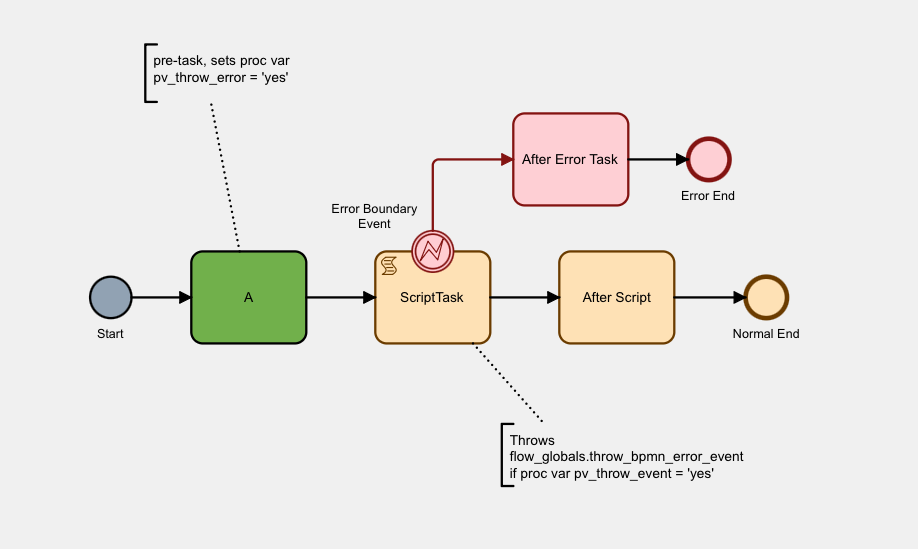
Here’s the process instance started. The Start Event is completed and shaded grey. Task A, shared green, is the current task. Our process variable, pv_throw_error is set to ‘yes’. Let’s step the process forward to our Script Task….
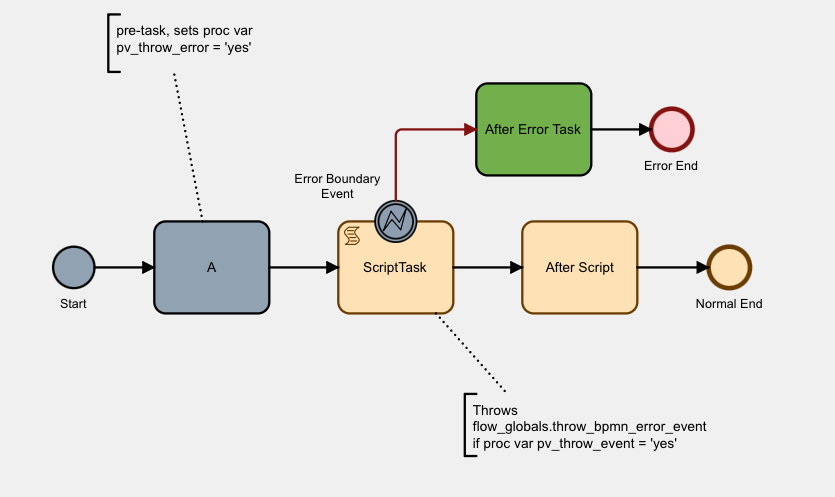
You can see that our Script Task wasn’t completed (it’s not been shaded grey), but that the Error Boundary Event has completed, and that After Error Task is now the current task.
Stepping the process forward again, you can see that the process completes when it reached and completes the Error End event.
2. Stopping the BPMN Engine
Rather. than throwing a BPMN error event, you can stop the BPMN engine and cause a process error (i.e., the process instance and the subflow will be marked as being in ERROR state by raising the flow_globals.request_stop_engine PL/SQL exception in your code.)
PL/SQL Script Tasks inside an Adhoc SubProcess
PL/SQL Script Tasks inside an Adhoc SubProcess have some additional rules.
- They must use input parameters for the data they need at runtime.
- They must use output parameters to return their results.
For Adhoc SubProcess usage, the output parameters must include:
result- a text string summarizing the result of the taskmainOutputs- an object containing the key output values that should be included in any log or activity summary
This keeps the task contract explicit and makes the step easier to render, execute, summarize, and log consistently inside the Adhoc SubProcess runtime.
More detail will be added in the Adhoc SubProcess documentation section.
Async Before and Async After Flags (EE Only) 🆕
Flows for APEX Enterprise Edition v26.1 introduces Async Before and Async After flags that allow you to control whether a Script Task, Service Task, Send Task, or Business Rule Task executes in the current user session or is pushed into a background async session.
Editions: Async Before and Async After flags are available only in the Flows for APEX Enterprise Edition v26.1 and later.
Why Use Async Execution?
Long-running PL/SQL scripts or service calls can make users wait unnecessarily while processing completes. By setting an async flag on a task, you can:
- Improve User Experience - Return control to the user immediately rather than making them wait for lengthy operations
- Offload Processing - Move heavy computational work into background sessions
- Maintain Responsiveness - Keep the APEX application responsive during complex workflows
- Separate Concerns - Run tasks that don’t need immediate user feedback asynchronously
Understanding Async Before vs. Async After
The two flags control when the task execution moves to a background session:
| Flag | When Applied | Behavior |
|---|---|---|
| Async Before | Before the task executes | The task itself runs in a background session. Control returns to the caller immediately, and the task executes asynchronously. |
| Async After | After the task completes | The task runs normally in the current session, but continuation to the next step(s) happens in a background session. |
Configuring Async Flags in the BPMN Modeler
To set async execution flags on a Script Task, Service Task, Send Task, or Business Rule Task:
- Select the task in the BPMN modeler
- Open the Properties Panel
- Locate the async execution options
- Check Async Before to execute the task itself asynchronously, OR
- Check Async After to continue asynchronously after the task completes
Screenshot placeholder: Property panel showing Async Before/After checkboxes will be added here
Note: You can set either Async Before or Async After, but not both on the same task. Choose the flag that best matches your execution requirements.
How Async Before Works
When a task has the Async Before flag set:
- The workflow reaches the task during normal processing
- The Pre-Task Phase completes and commits to the database
- A background job is scheduled to execute the task
- Control returns immediately to the calling context (user session, API call, etc.)
- The background job executes the task asynchronously
- Upon task completion, the workflow continues processing until the next natural break point
Use Async Before when:
- The task performs long-running processing (bulk data operations, complex calculations)
- The task calls slow external services or APIs
- You want to free the user’s session immediately
- The task doesn’t need to return immediate results to the user
Example Scenario:
User Task → (Async Before) Script Task → Gateway → Another User Task
- User completes the User Task and clicks “Submit”
- The Script Task’s Pre-Task Phase commits
- User sees immediate confirmation and can continue using the application
- The Script Task executes in the background
- The Gateway is evaluated in the background
- The workflow advances to the next User Task (which the user will see in their task list)
How Async After Works
When a task has the Async After flag set:
- The workflow reaches the task during normal processing
- The task executes normally in the current session
- The Post-Task Phase begins
- A background job is scheduled to continue to the next step(s)
- Control returns immediately to the calling context
- The background job continues processing from the next step until reaching a natural break point
Use Async After when:
- The task should complete in the user’s session (e.g., to capture results or provide feedback)
- Subsequent processing can happen in the background
- You want the task itself to run synchronously but continuation to be async
- You need to provide immediate task completion status to the user
Example Scenario:
User Task → Script Task (Async After) → Complex Processing Steps → Another User Task
- User completes the User Task and clicks “Submit”
- The Script Task executes and completes in the user’s session
- User sees confirmation that the task completed successfully
- A background job is scheduled for subsequent steps
- Complex Processing Steps run in the background
- The workflow advances to the next User Task without waiting
Execution Context in Background Sessions
When a task executes in a background session (due to async flags):
- APEX Session Context - No APEX session exists by default. You must configure Background Task Session if your script requires APEX APIs.
- APEX Page Items - Not available. Always use Process Variables to pass data between steps.
- Process Variables - Fully available and should be used for all data access.
- Database Session - Background sessions run as the Flows for APEX schema user.
- Transaction Isolation - Background execution occurs in its own database transaction, separate from the user’s session.
Important: Design your PL/SQL scripts to work in both user sessions and background sessions. Always use Process Variables rather than APEX Page Items.
Visibility in Instance Timeline
Tasks executing with async flags are clearly marked in the Instance Timeline view. You can see:
- When a task switched from user session to background execution
- Whether Async Before or Async After was used
- Background job execution timing
- Any errors that occurred during async execution
Screenshot placeholder: Instance Timeline showing async execution will be added here
This visibility helps with:
- Debugging workflow execution
- Understanding performance characteristics
- Identifying bottlenecks in async processing
- Troubleshooting background execution issues
Background Execution Until Natural Break Point
Regardless of which async flag triggers background execution, the workflow engine processes steps continuously until reaching a natural break point.
Natural break points include:
- User Tasks (APEX Page Task, Human Task, Simple Form)
- Receive Tasks and Message Catch Events
- Timer Catch Events
- Manual Tasks
Example: If an async task is followed by three more Script Tasks, two Gateways, and then a User Task, all intermediate steps execute in the same background session before stopping at the User Task.
For more information about workflow sessions and natural break points, see Async Tasks and Background Execution.
Error Handling in Async Tasks
Errors in async tasks are handled differently than errors in user session tasks:
- User Session Errors - Can be displayed immediately to the user
- Background Session Errors - Logged to the instance, set process status to ERROR
- Error Events - BPMN Error Boundary Events work the same in both sync and async contexts
- Restart - Failed async tasks can be restarted using the Flow Monitor
Best Practice: Ensure your PL/SQL scripts have appropriate error handling and logging, especially when using async flags.
Transaction Model and Async Execution
Async execution interacts with the Flows for APEX transaction model:
- Pre-Task Phase commits before Async Before execution
- Post-Task Phase commits before Async After continuation
- Each background execution creates its own transaction boundary
- Commits occur at natural break points in background sessions
For detailed information about transaction phases, see Transaction Model.
Best Practices for Async Tasks
- Use Process Variables - Never rely on APEX Page Items in scripts that might run async
- Make Scripts Idempotent - Design scripts to be safely restartable in case of errors
- Choose the Right Flag - Select Async Before vs. Async After based on whether the task or the continuation should be async
- Configure Background Sessions - Set up Background Task Session configuration if your scripts need APEX APIs
- Monitor Execution - Use Instance Timeline to monitor async execution and identify issues
- Test Both Modes - Test workflows in both user session mode and async mode to ensure proper behavior
- Handle Errors Gracefully - Include comprehensive error handling since async errors can’t be shown to users immediately
- Consider Performance - Async execution adds overhead; use it when the benefits outweigh the costs
Example: Long-Running Data Processing
Here’s an example of when to use Async Before for a long-running data processing task:
Scenario: A workflow where users submit a data import request, which triggers bulk processing of thousands of records.
Without Async:
User Task (Submit Import) → Script Task (Process 10,000 Records) → User Task (Review Results)
- User clicks “Submit Import”
- Browser waits 2-3 minutes while processing
- User cannot continue using the application
- Poor user experience
With Async Before:
User Task (Submit Import) → Script Task [Async Before] (Process 10,000 Records) → User Task (Review Results)
- User clicks “Submit Import”
- Immediate confirmation message displayed
- User can continue working
- Processing happens in background
- User receives notification when Review Results task is ready
- Excellent user experience
Example: Immediate Feedback with Async After
Here’s an example of when to use Async After to provide immediate feedback:
Scenario: A workflow where a validation task captures results, but subsequent notifications can happen asynchronously.
With Async After:
User Task (Submit Form) → Script Task [Async After] (Validate Data) → Script Task (Send Notifications) → User Task (Next Step)
- User clicks “Submit Form”
- Validation runs immediately in user’s session
- User sees validation results (pass/fail) immediately
- Background job sends notifications
- Background job advances to Next Step
- User experiences immediate validation feedback without waiting for notifications
Related Topics
- Async Tasks and Background Execution - Comprehensive guide to workflow sessions and async execution
- Transaction Model - Understanding transaction phases and commits
- Configure Participants and Processes - Background Task Session configuration
- About Timers and Scheduling - Timer-based background execution
- Process Variables - Using Process Variables in background sessions